Accounts & Contacts Guide
Build a reliable customer database by keeping organisation and person records complete, connected, and current.
Manage customer organisations
Accounts represent organisations or companies. They provide the shared context for Contacts, Opportunities, Cases, activities, and documents.
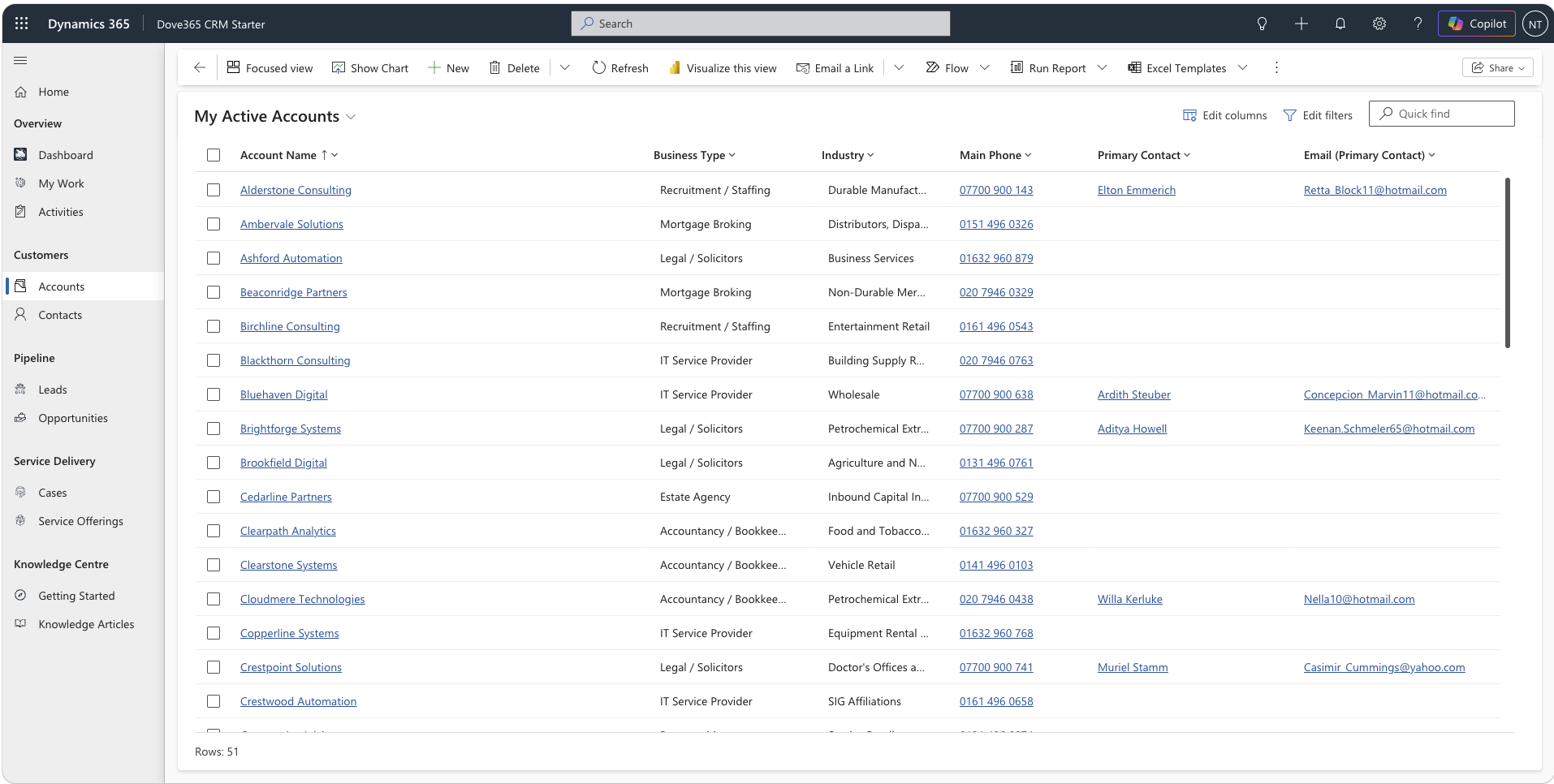
Open Accounts
Open Customers or Relationships, then Accounts.
Create
Select New and enter the Account Name.
Complete
Add phone, website, relationship type, parent Account, address, and profile details.
Save
Save before adding Contacts, activities, related work, or documents.
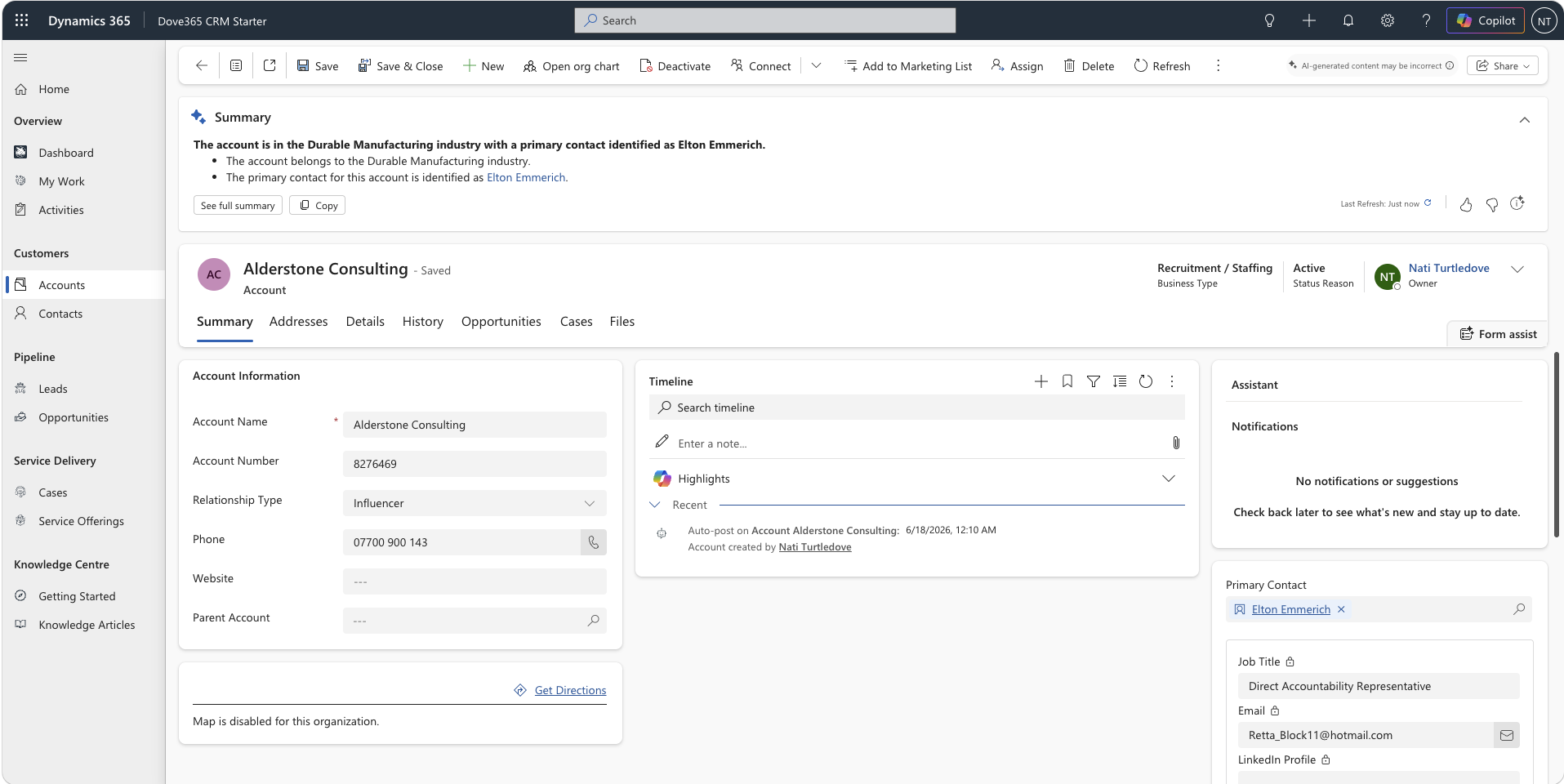
Manage the people you work with
Contacts represent people. Link each Contact to the correct Account so relationship history, pipeline work, service activity, and documents remain connected.
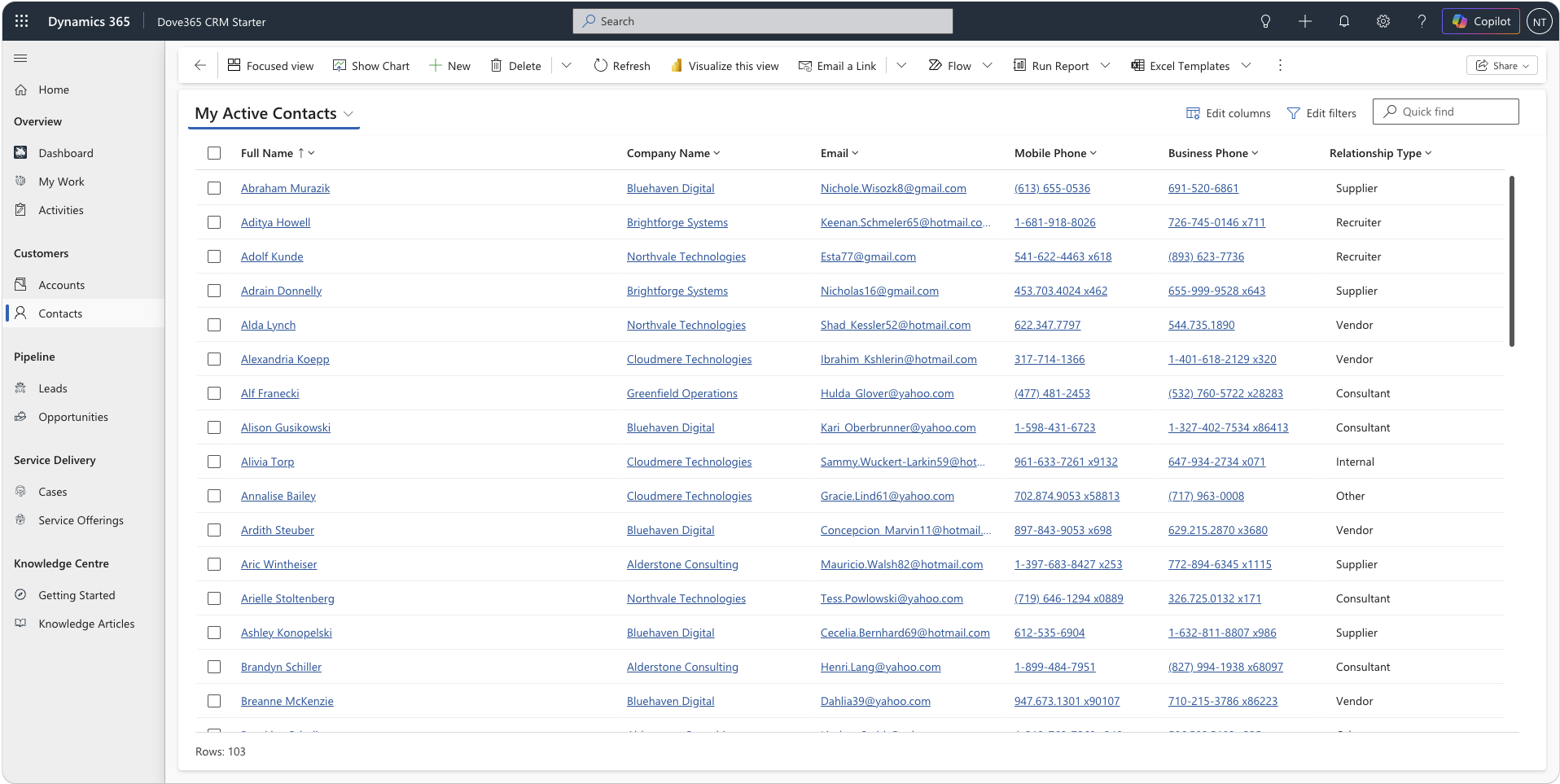
Open Contacts
Open Customers or Relationships, then Contacts.
Create
Select New and enter first name, last name, job title, email, and phone details.
Connect
Select the related Account and add the LinkedIn profile URL where known.
Save
Save before adding activities, related records, or files.
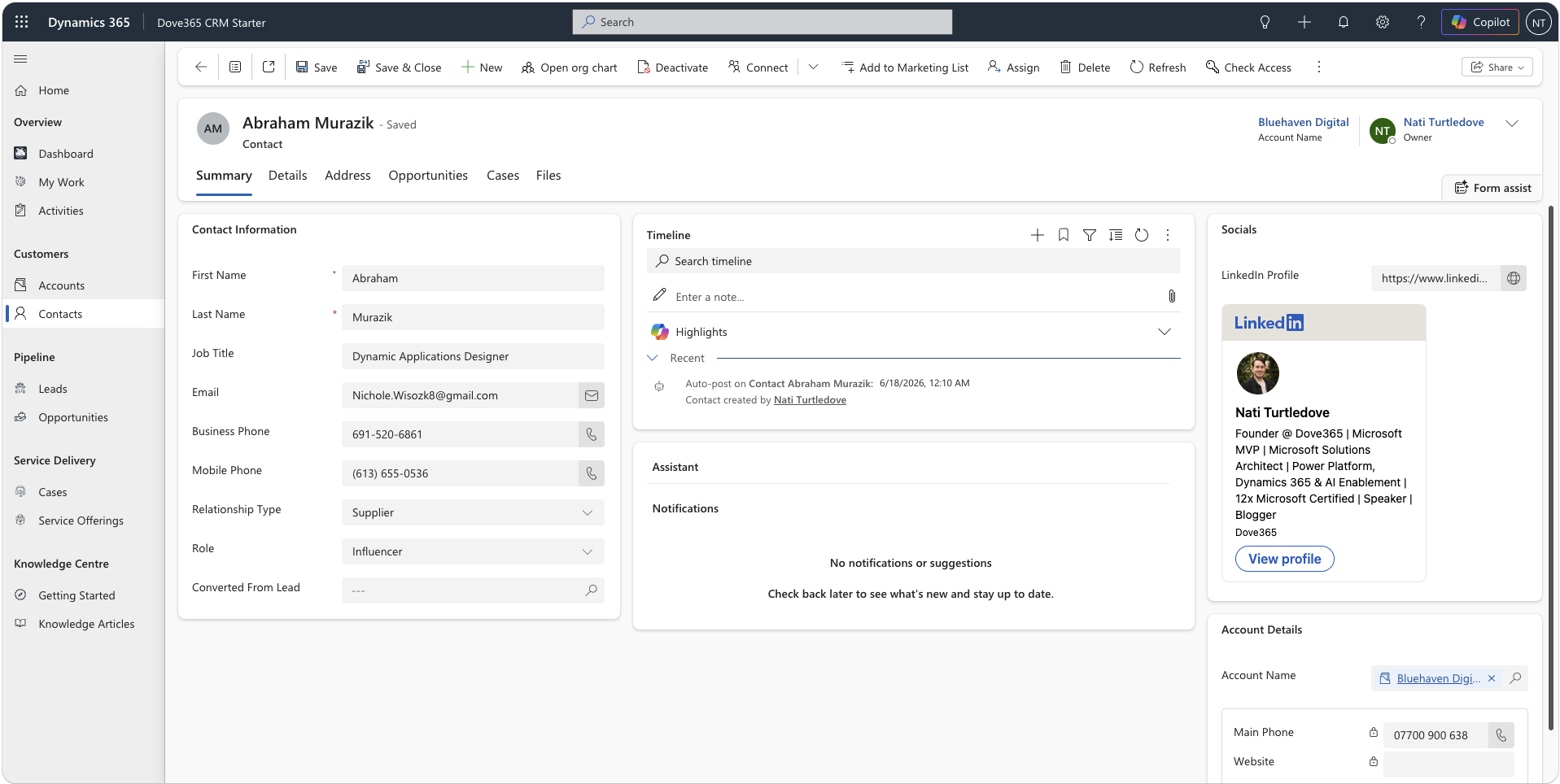
Keep relationships connected
Use Quick Create in context
Create a Contact from an Account or another related form when you need to keep your current work open.
Review related records
Use related Opportunities, Cases, activities, timeline, and files to understand the complete relationship before taking action.
Check before creating
Search for an existing Account or Contact first to avoid duplicate customer records and fragmented history.
Keep details current
Update ownership, contact details, Account links, roles, and profile information as the relationship changes.
Contact files in SharePoint
When SharePoint document management is configured and Contacts are enabled in Document Management Settings, users can view and manage files from the Contact Files or Documents area.
Continue through the customer lifecycle
Use Leads for early-stage prospects and Opportunities for qualified sales work.